
English
Channel Management & Default Routing
StackVid provides an intuitive channel management system on your Dashboard, allowing you to orchestrate multiple social accounts safely and effortlessly.
1. Setting a Default Channel on Dashboard
You can link multiple TikTok accounts to your workspace. When you mark an account as your Default Channel (isDefault):
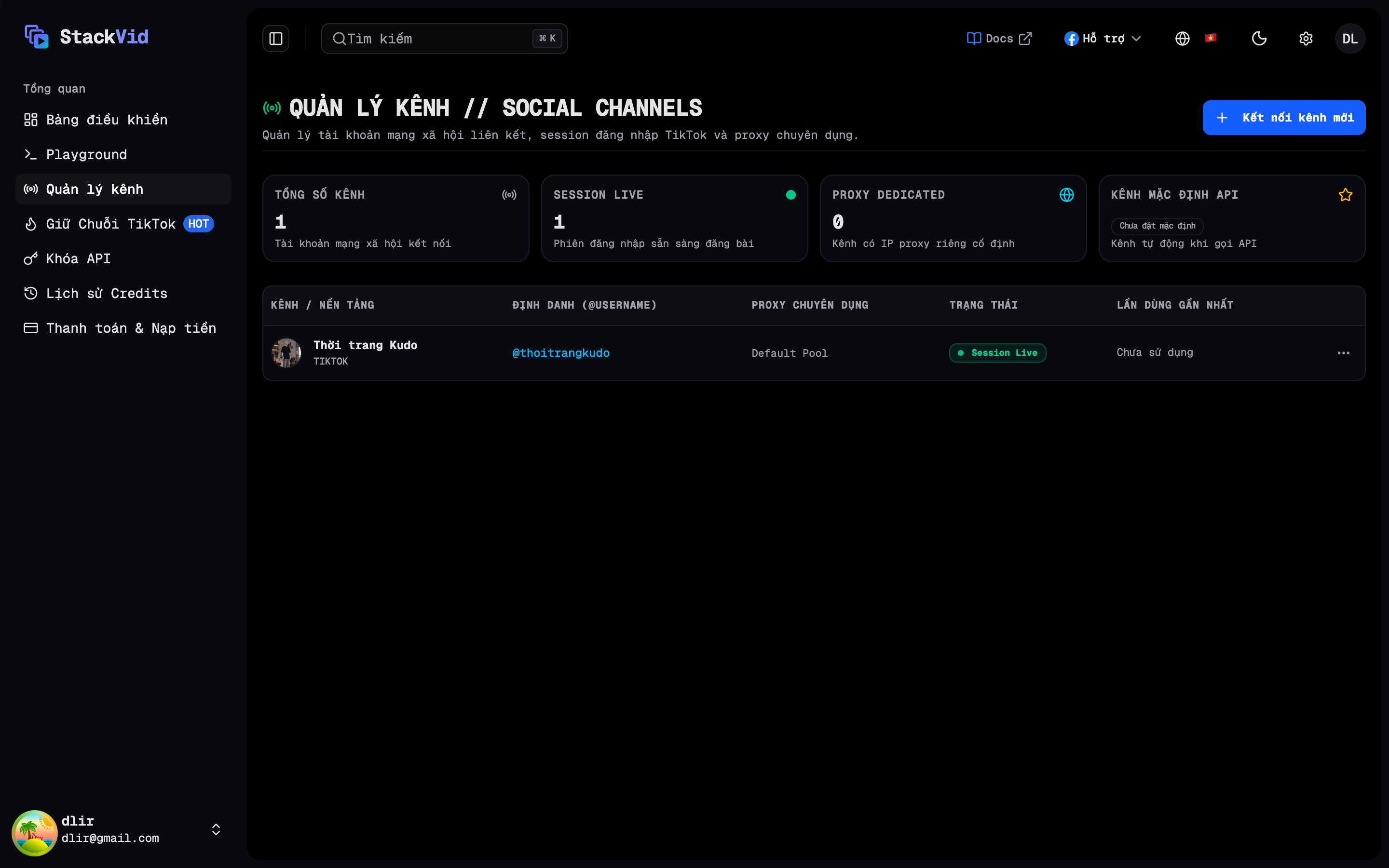
- Any automated video publish or showcase query that omits a specific channel target will automatically route through this default channel.
- Setting a new channel as default automatically updates the flag on your workspace.
How to Configure on Dashboard:
- Navigate to Channels (
/channels) in your StackVid Dashboard. - Locate the channel you wish to prioritize and toggle Set as Default.
- A
DEFAULTbadge will appear on the channel card for clear visibility.
2. Channel Resolution Rules for API Calls
StackVid clearly distinguishes between account-dependent publishing and public data mining APIs:
A. For Video Publishing APIs (POST /api/tiktok/upload):
- Explicit Channel Target: Include
targetChannel: "Your Channel Name"in your JSON payload to publish to a specific TikTok account. - Automatic Default Routing: If
targetChannelis omitted, the engine automatically routes the upload through your active Default Channel.
B. Data Scraping & Sound Search (Crawl Posts, Profile, Music):
- Endpoints like Crawl Creator Posts (
GET /api/tiktok/user/posts), Crawl Profile (GET /api/tiktok/user/profile), and TikTok Music Search (POST /api/tiktok/music/search) operate independently without requiring a connected publishing channel: simply provide a validX-API-Key.
3. Channel Status & Session Updates on Dashboard
On the Dashboard → Channels page, each account displays real-time operational status:
ACTIVE: Channel is fully operational with valid TikTok session cookies.EXPIRED: The session cookie on TikTok has expired. Simply click Update Session on the Dashboard to paste fresh cookies without recreating the channel.- Remove Channel: Click Delete on any channel card to disconnect and purge its credentials immediately.
⚠️ Session Persistence for Multi-Account Setups
- Avoid clicking Log out on TikTok Web: logging out explicitly invalidates the account's session tokens, causing the channel status in StackVid to turn
EXPIRED. - When orchestrating multiple TikTok accounts, maintain isolated Chrome browser profiles for each account. After linking a channel, close the browser window rather than logging out.