
English
Connecting Social Channels
StackVid allows you to connect and orchestrate multiple social media channels directly from the intuitive web Dashboard.
1. Supported Platforms
The system supports multi-platform channel orchestration:
TIKTOK(Available now - Full TikTok Shop Cart Anchor support)FACEBOOK REELS(Coming soon)SHOPEE VIDEO(Coming soon)YOUTUBE SHORTS(Coming soon)INSTAGRAM REELS(Coming soon)
2. Connecting a Channel
StackVid provides two flexible methods to connect and orchestrate your social channels:
Method 1: 1-Click Automated Connection via StackVid Connect (Recommended)
To publish videos automatically via the API (POST /api/tiktok/upload), you need at least one connected TikTok account. The fastest and most convenient method is using the open-source browser extension StackVid Connect:
- Install Extension & Configure API Key (One-time setup):
- Clone or download the extension source from GitHub: github.com/dlir2404/stackvid-connect.
- In Chrome, Brave, or Edge, visit
chrome://extensions/, enable Developer mode, click Load unpacked, and select the extension folder. - Obtain your workspace API Key from Dashboard → API Keys (
tk_live_...). - Open the extension popup (or the floating widget settings) and paste your API Key. The extension securely stores this key locally for all future operations.
- Log In to TikTok & Intercept Session:
- Navigate to tiktok.com and log into the creator account you want to link.
- Browse 1–2 videos or visit your profile; the floating StackVid badge in the corner will turn
READY(cyan).
- 1-Click PUSH to Link Channel:
- Click the
PUSHbutton on the floating pill (or click⚡ ADD CHANNEL TO ACCOUNTin the panel/popup). - The extension authenticates with your API Key, automatically resolves your account handle (
@username), nickname, and avatar via gRPC, and links the channel to your workspace instantly.
- Click the
Method 2: Manual Connection via Dashboard
You can also link a new channel directly from the Dashboard → Channels (/channels) interface:
Step 1: Open the Connection Dialog
- Log into your StackVid Dashboard.
- Navigate to Channels (
/channels) in the left sidebar. - Click the + Connect New Channel button in the upper right.
Step 2: Fill in Channel Details
The connection dialog features a streamlined, minimal configuration:
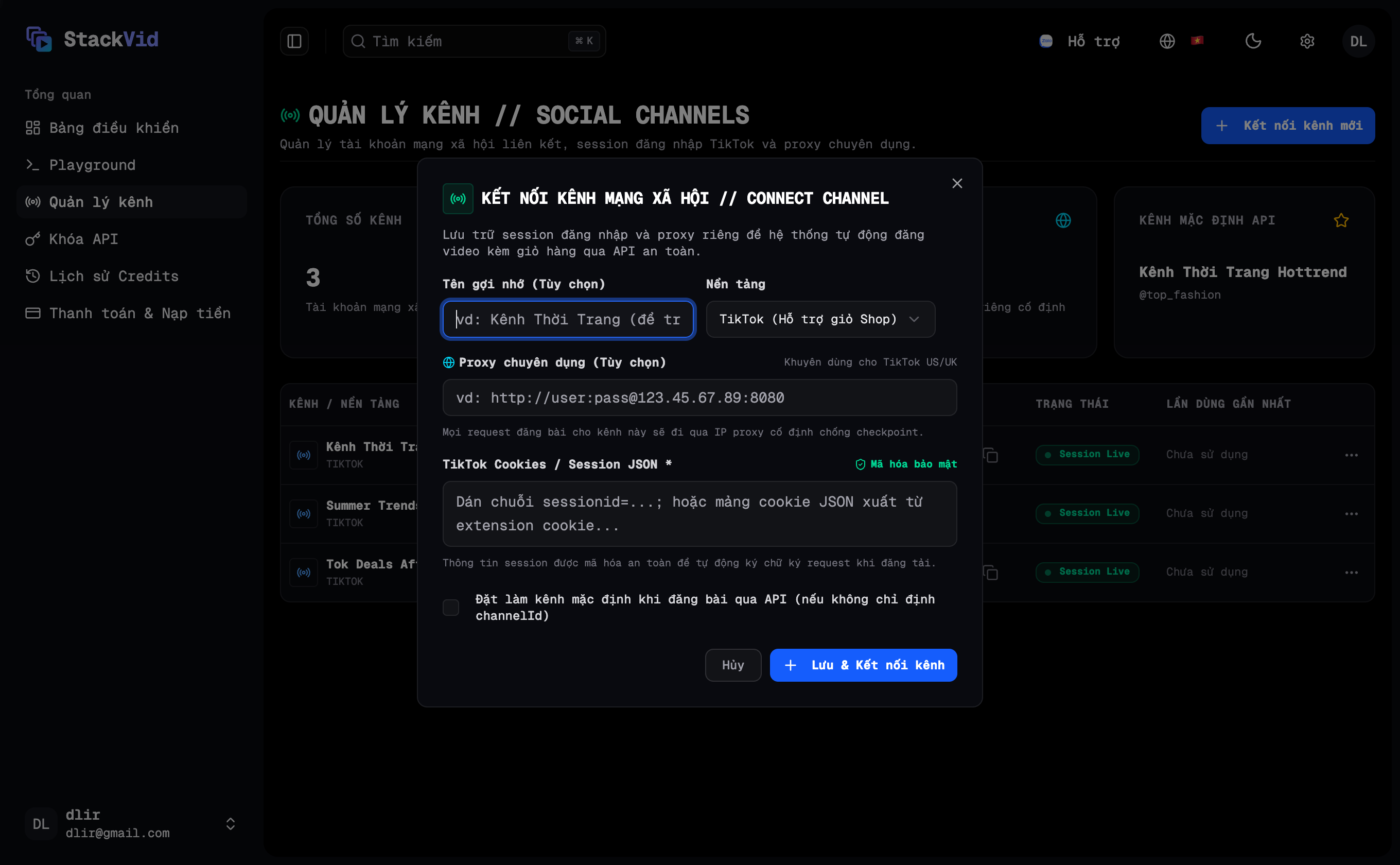
- Friendly Alias (Optional): A memorable name for your channel (e.g.
US Fashion Showcase). If left blank, the system automatically uses your channel's TikTok display name. - Platform: Select TikTok (Shop Cart Supported).
- *Session / Cookies (Required): Paste your cookie string or JSON session exported from your browser after logging into TikTok (containing
sessionid,multi_sids, etc.). - Dedicated Proxy (Optional): Enter a custom HTTP/HTTPS proxy URL if managing US/UK accounts to ensure consistent IP routing.
- Set as Default Channel: Check this option if you want automated API publish requests to default to this channel whenever a specific target channel is omitted.
Step 3: Connect & Automatic Profile Resolution
Click Connect Channel. StackVid will automatically:
- Securely validate the session via internal gRPC microservices.
- Automatically resolve and attach the account handle (
@username) and high-resolution avatar image. - Add the channel to your active channels table immediately.
Automatic Identity Resolution
You do not need to manually look up your User ID or copy your avatar URL. The system automatically fetches your channel profile and displays it on your Dashboard.
⚠️ Do Not Log Out on TikTok Web
- Session Lifecycle: Clicking Log out on the TikTok web interface immediately invalidates the authentication session (
sessionid) across TikTok servers. The associated channel in StackVid will immediately transition to theEXPIREDstate. - Best Practice for Multi-Account Operations:
- Use dedicated Google Chrome Profiles (or Incognito windows) for each individual TikTok account.
- Log into the respective account on its own browser profile.
- After linking the channel to StackVid (via the StackVid Connect extension or Dashboard), simply close the tab or browser window without clicking Log out.
- This preserves the session indefinitely for uninterrupted automated publishing.
3. Session Security & Encryption
- All session tokens and cookies are encrypted at rest using enterprise-grade AES-256-GCM encryption before being saved to the database.
- When viewing or querying channels, credentials are fully redacted (
[REDACTED]) to prevent accidental token exposure.